Start tutorial:
To access the tutorial, tap the  icon located at the top left-hand corner of the screen.
Users can access this feature at anytime.
Select player: 
Tap on a player's name located at the bottom of the screen.
Most actions on the court will be associated with the selected player.
Drag the ball: 
Once a player is selected, both basketballs are activated.
The lower scoring number represents points awarded for any successful shot (field goal) taken from inside the three-point arc.
The higher scoring number represetns points awarded for any successful shot (field goal) taken from beyond the three-point arc.
Score Basket: 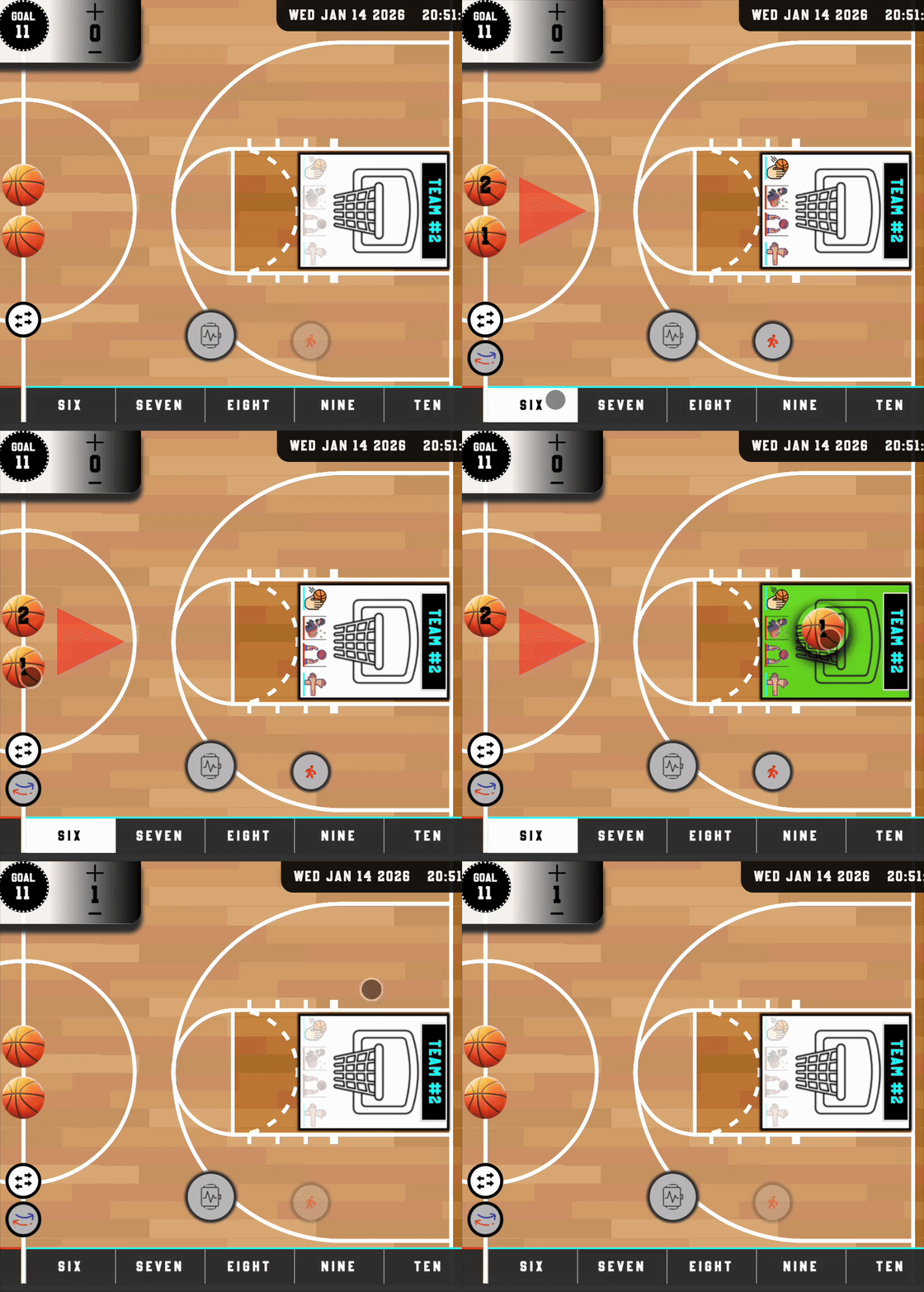
Drop the ball into the appropriate basket.
Tip: Each team scores in the basket that is on their side.
Examples:
1. Anyone from TEAM2 can score on HOOP2.
2. No one from TEAM1 can score on HOOP2.
Switch Team Positions: 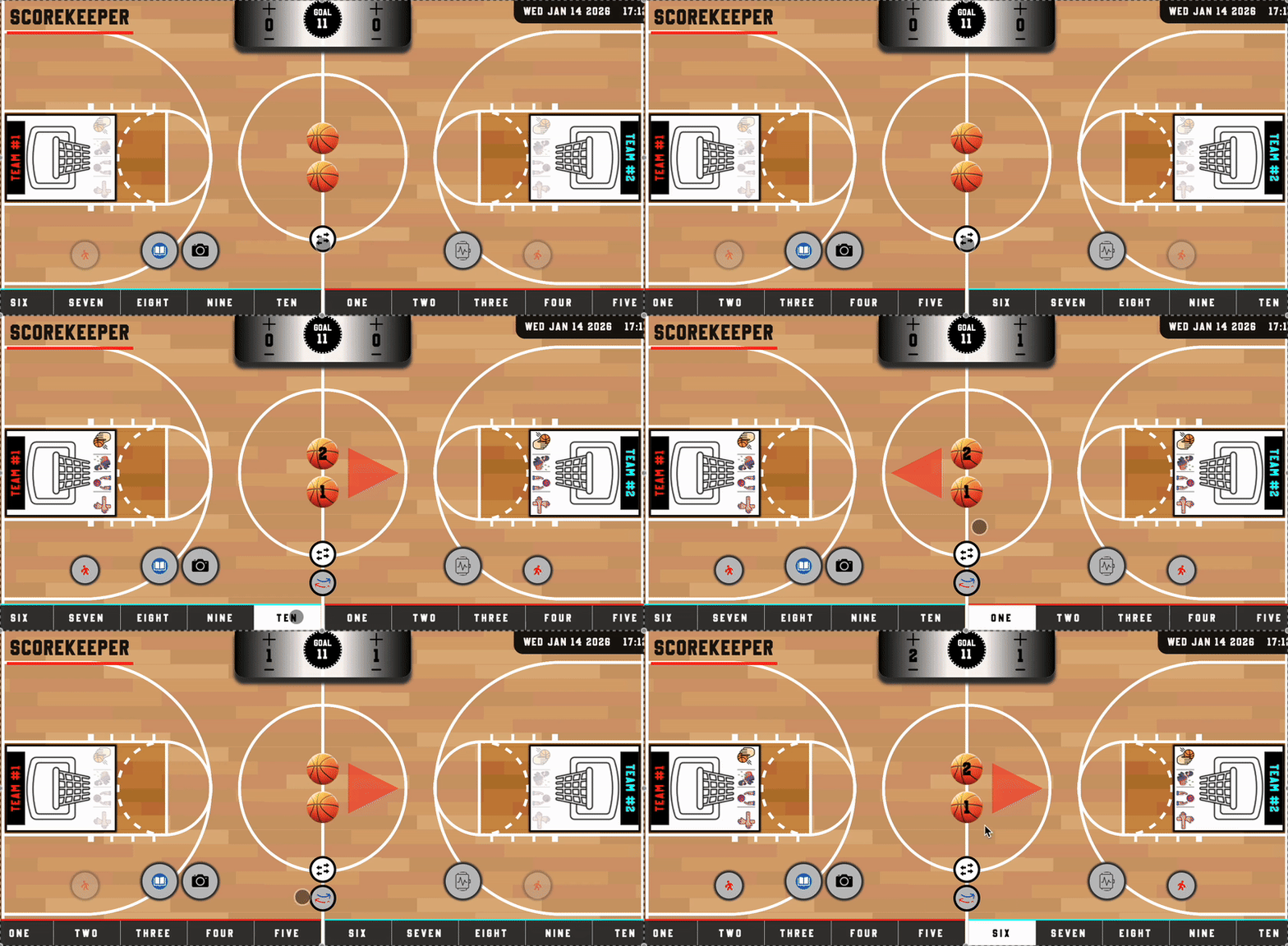
This feature is optional and user-preference
After a game starts, scorekeepers can click the  to switch both team container's position.
This feature allows scorekeepers to activate existing players from the same, or opposite, side of the hoop.
Tip:Team Containers can switch, but hoops cannot.
Update Goal: 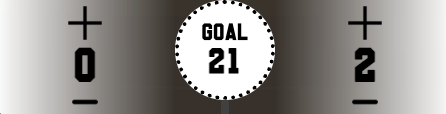 Tap the goal 21 located towards the top of the screen.
Add score: Instead of dragging the ball, tap on the plus sign located at the top of the screen.
Subtract score: Tap on the subtraction sign located at the top of the screen.
Play By 2: Players have the option to play to the desired goal or win by a margin of 2 points.
Player substitution:
Substituting players and retaining records has never been easier.
- 1. Hold down player for approximately 2 seconds
- 2. Edit player's name
- 3. Click
 to Accept change or
  to revert back to the original name

For the purpose of tracking data, players on the same team cannot have the same name.
To fix, make the name unique
Track Assists: 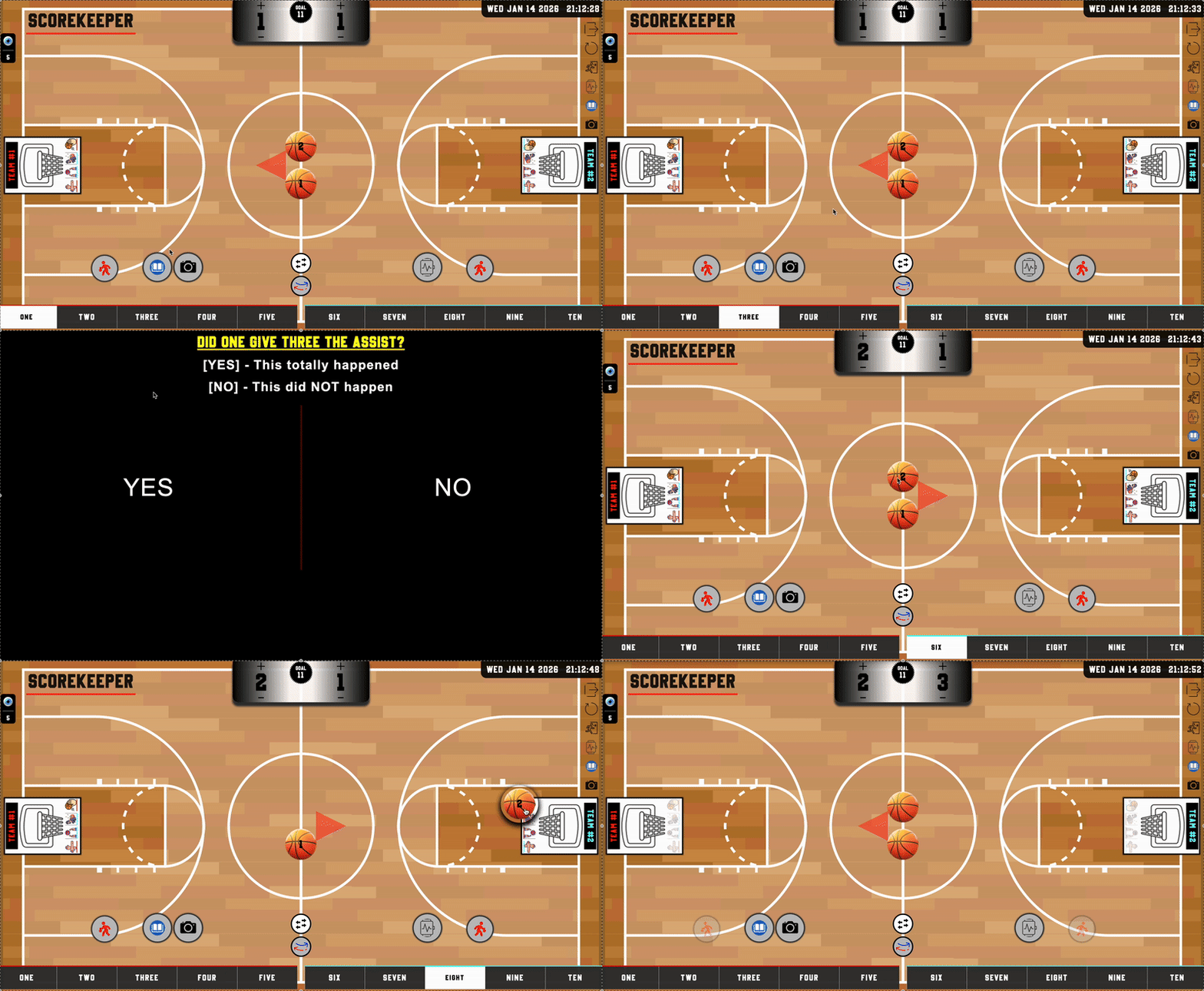
An assist is a pass that directly leads to a made basket by a teammate
Scorekeepers can respond to assists with either, [ YES | NO ]
Example 1:
Click a Player from TEAM1 (Player 1)
Click either basketball
Click a different player from TEAM1 (Player 2)
Score a basket.
Example 2:
Click a Player from TEAM1 (Player 1)
Click a different player from TEAM1 (Player 2)
Drag either basketball
Score a basket.
A prompt will appear asking if Player 1 assisted Player 2 in a goal.
 Record Games:
Toggle the camera  to enable/disable.
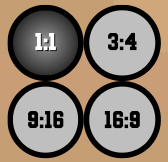
Before starting a video, pick the appropriate resolution
When a video is recording, toggle the  button to switch between fullscreen and scorekeeper view.
After a recording stops, a clip is fed into the tracker and ready to save.
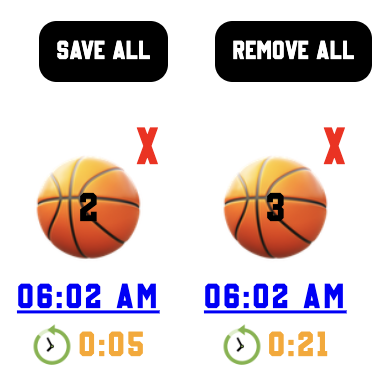
To save a video, click the desired media represented by a basketball.
To save all videos, click the save all button located towards the bottom of the tracker.
The upload time and duration  are included with each clip.
Videos can be dumped by clcking the red X located next to it's media.
To remove all videos, click the remove all button located towards the bottom of the tracker.
View the Timeline: 
The timeline can be located at the top of the tracker.
Each item includes the player's name, the time a basket was scored, the team as well as the number of points made.
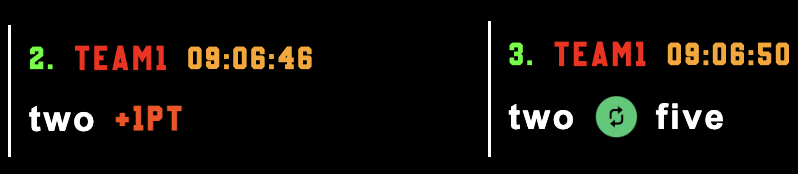 Check when players have been switched out,
View Team Stats: 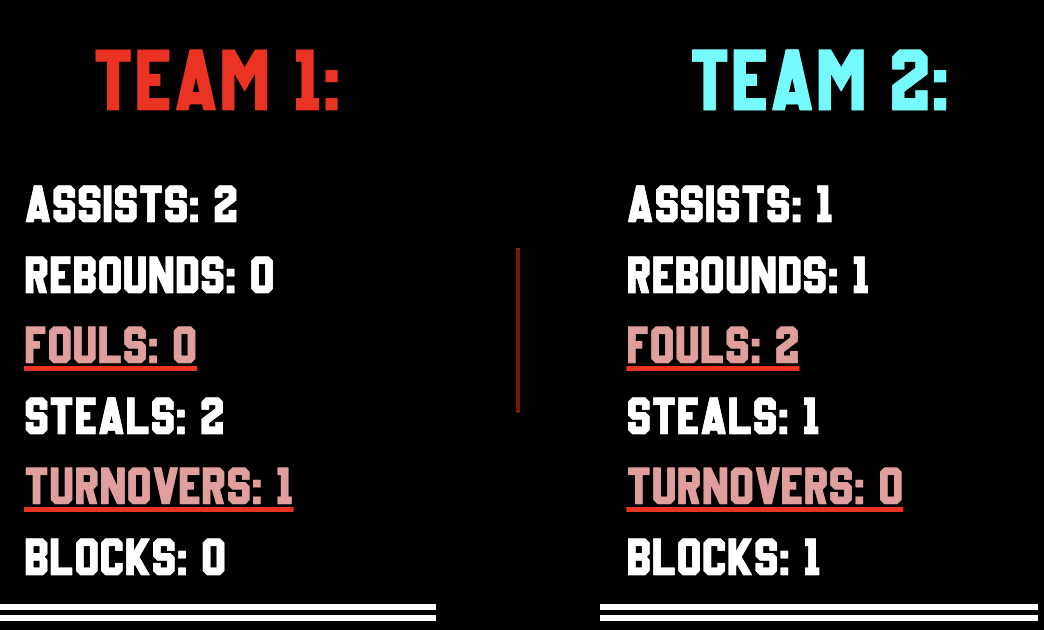
Team stats are located under the Timeline
Track assists, rebounds, fouls, steals, turnovers and blocks by team!
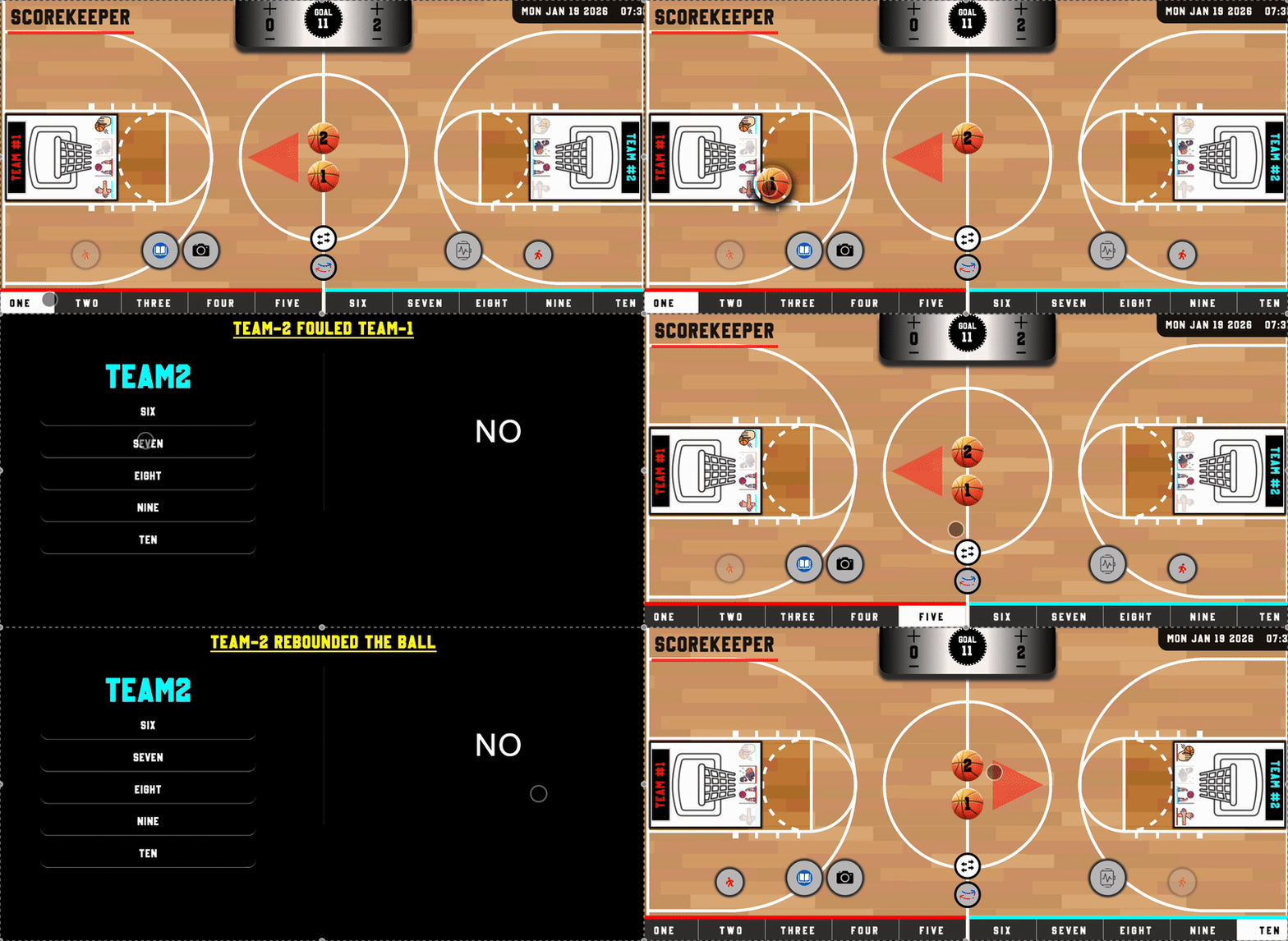
Blocks, Steals, Turnovers, Rebounds, and Fouls:
View the list of examples below:
Blocks: Clicking BLOCK on TEAM1's hoop means that TEAM2 attempted to block TEAM1
Steals: Clicking STEAL on TEAM1's hoop means that TEAM1 attempted to steal the ball from TEAM2
Turnovers: Clicking TURNOVER on TEAM1's side  means that TEAM2 turned the ball over.
Rebounds: Clicking REBOUND on TEAM1's hoop means that TEAM1 attempted to rebound the ball from TEAM2
Fouls: Clicking FOUL on TEAM1's hoop means that TEAM2 attempted to foul TEAM1

Blocks (B)

Steals (S)
Turnovers

Rebounds (R)

Fouls (F)
Add event to player:
Dynamically add the action (Fouls,Steals,Rebounds,Turnovers,Blocks) to the player.
View possessions: 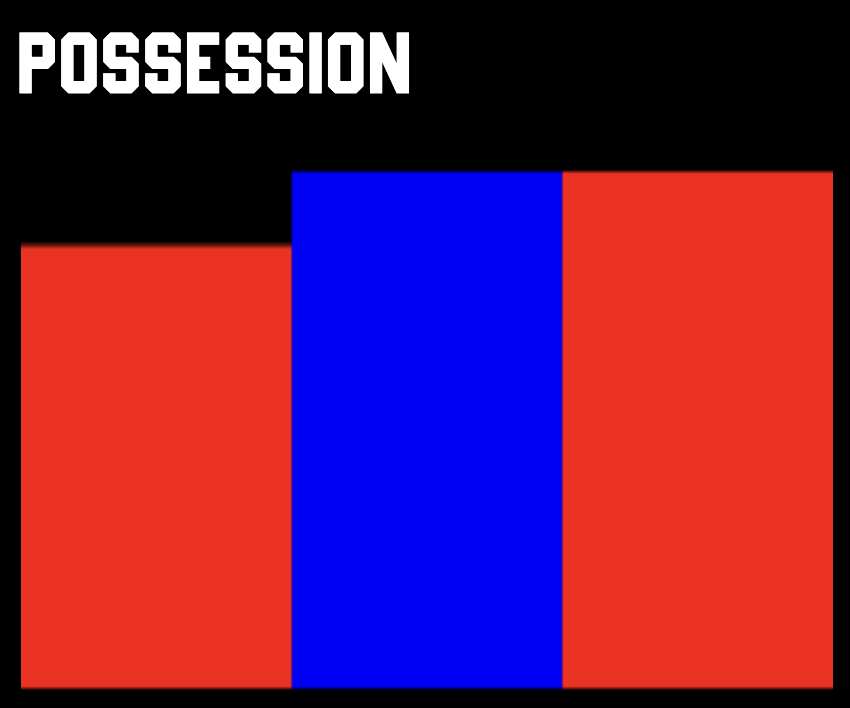
Possessions are located within Team Stats
The entire sequence of plays a team has the ball, starting when they gain control and ending when they score, turn it over, or the other team gets it
Team possessions are measured in minutes and seconds where red represents team1 and blue represents team2.
Posession Legend: 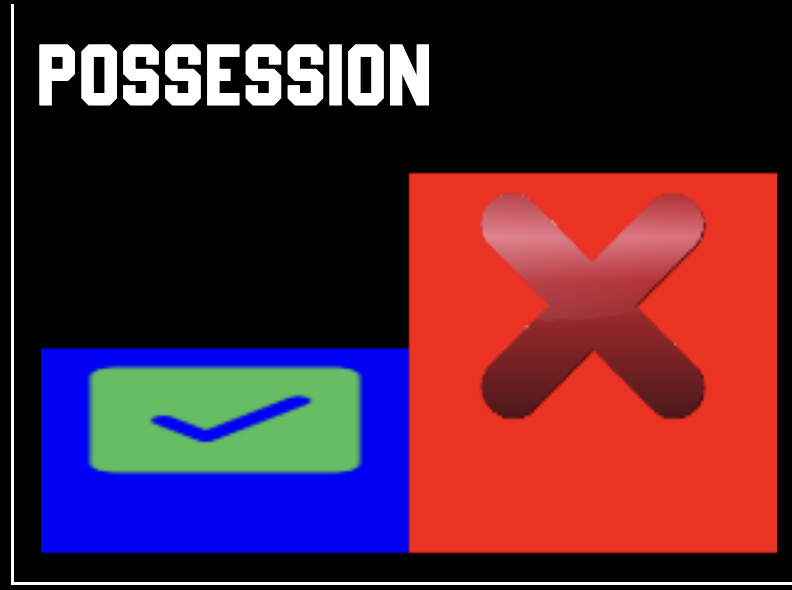
If a possession includes an or , some meaningful event occured between both teams.
View Individual Stats:
Player stats are located under Team Stats
Sort Individual Stats: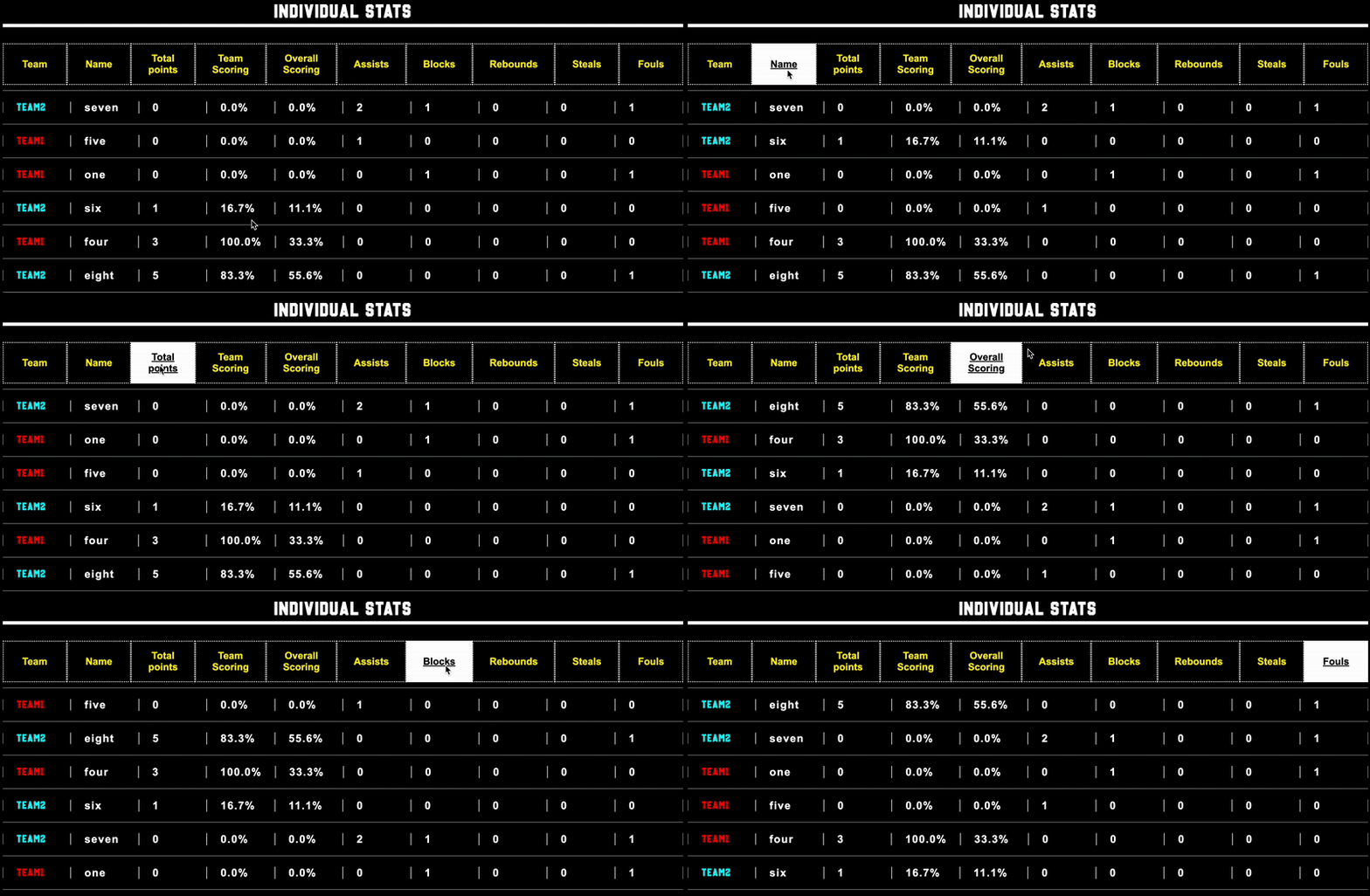
Scorekeepers are equipped with tools to organize data for better understanding, faster analysis, and clearer presentation.
Click a column item (Team, Name, Total Points, Assists, Rebounds, etc...) to sort rows in ascending or descending order.
Acronyms / Synonyms (Mobile View)
 View highlights:
Tap the gallery image to view available recordings.
The gallery image will appear for existing videos
Power Saving:
Screen brightness will lower if the device reaches a battery level of  35% or less.
The camera will not display if the device's battery level is 35% or less.
The camera will appear if the device is charging.
Game Timeout:
If activity is not detected for 5 minutes, the utility will force a reload, losing all progress of the current session.
A timeout is set to run regardless if the window is present or not.
If scorekeepers decide to leave this current window and come back before the 5 minute timeout expires, the timeout will reset, allowing the session to continue.
Track scores 
Restart game 
Exit game 
Record Games
Toggle Video Size
View Highlights
Read instructions 










 ballscore Tutorial